HashiCorp Vault Tutorial: Getting Started With Vault
November 13, 2019
No items found.
Every business needs to pay special attention to security matters. Secrets management is one of the leading security tasks. In this tutorial, we will introduce you to the basics of using the Hashicorp Vault, a powerful tool for securing accessing secrets.
Vault Overview
Purpose
What are the secrets that we mentioned above? It may be API and database credentials, passwords, certificates, SSH keys, etc. Vault is used to provide the secure storing of secrets and control the access to the secrets. The tool allows flexible setup and various security conditions manipulation. The main benefit of using Vault is to manage secrets securely in a central location which prevents secret sprawl. A secondary benefit is for Governance that includes policies, audit logs, trails etc.
Features
There are several Vault’s features that make it so popular, including:
Client Access Interfaces Vault’s capabilities are accessible programmatically by other services and applications due to the HTTP API. In addition, there are several officially supported libraries for programming languages (Go and Ruby at the time of this writing) and a range of community-supported packages for many languages (Python, PHP, Java, C#, NodeJS, etc.). These libraries make the interaction with the Vault’s API even more convenient. Vault also has a command-line interface (CLI).
High AvailabilityVault has embedded mechanisms that make it resilient from failures. An important role here is replication technology. It is possible to create a Vault cluster using several machines.
High ThroughputDue to the replication technology, Vault is very scalable and can provide a high throughput rates to meet most needs.
Data EncryptionVault is capable of encrypting/decrypting data without storing it. The main implication from this is if an intrusion occurs, the hacker will not have access to real secrets even if the attack is successful.
Dynamic SecretsThis means that the secret doesn’t exist until it is read. The primary purpose of this feature is increased security. The logic is as follows. The less time the secret lives, the less risk of the secret stealing. For example, your application needs access to the database, but the credentials are not yet generated. Vault will create these credentials after the request from the app, then the app will use the generated credentials to perform needed operations, and then Vault will deactivate the credentials. The time when the credentials exist and can be stolen is extremely short.
Temporary Secrets & RevocationVault can store secrets for a defined period, called a lease. When this period expires, the secrets are automatically revoked. Also, Vault supports a flexible manual revocation of secrets.
LoggingVault keeps a history of interacting with it and its secrets.
Convenient AuthenticationVault supports authentication using tokens, which is convenient and secure.
CustomizationIt is possible to connect various plugins to Vault in order to extend its functionality.
Web UIVault has a web-based graphical user interface, which you can use to interact with the system.
First Steps in Vault
Installation
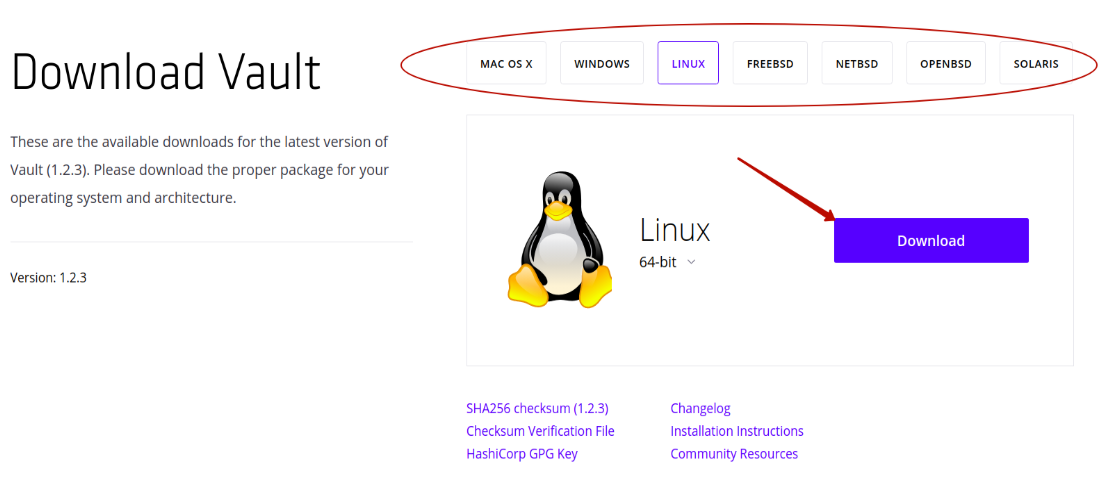
It is possible to compile Vault from source. Nevertheless, the standard installation path is the follows:
Unzip the package. The main part of the unzipped catalog is the vault binary. All other files can be removed safely.
For Ubuntu, the final step is to move the vault binary into /usr/local/bin/ directory:
In general, for any system, you should be sure that the vault binary is available on the PATH. To see more specific recommendations for your OS, please see the official documentation.
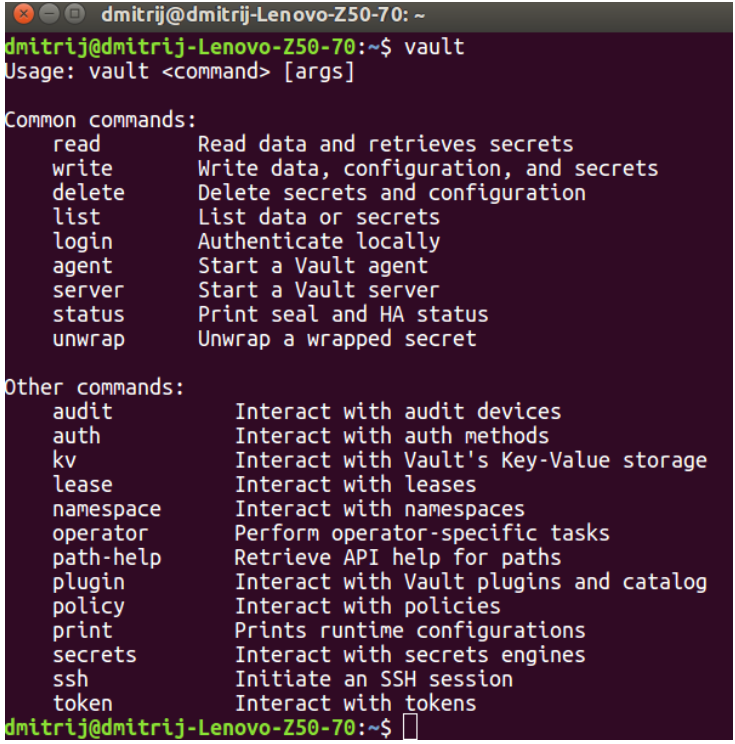
Verify the installation. Open the new CLI window and type the vault command there. You should see the output similar to this:
Also, you can check the version of the Vault installed by using the vault --version command.If the vault command is unknown for your system, then go back and try to find the issue with installation. The most common matter is the absence of the directory containing vault binary in the PATH.
Server starting
To use Vault, you should start the server. There are two types of servers: development and production. It is easier to start the development server. It is not as safe as a production server, but it can be used to explore Vault and make some prototyping.
To set up the development server, perform the following steps:
From the CLI issue the command:
Here is the possible output of this command:
Don’t close the current CLI window.
Open the new CLI window.
Set the environment variable VAULT_ADDR:
Set the environment variable VAULT_DEV_ROOT_TOKEN_ID:
For both VAULT_ADDR and VAULT_DEV_ROOT_TOKEN_ID, you should use your own values, which you can find in the output of the vault server -dev command rather than the values given in this tutorial.
Save the Unseal Key value. For the first steps, it is not important how and where you will save it.
Check the server running. To do this, issue the command in the CLI:
Below is the desired output:
If you can see the output like on the image above, this means that you did everything correctly.
Basic Work with Secrets
There are several methods to manage secrets in Vault. It has HTTP API to interact with the system programmatically. Also, it has a web-based GUI. The third major option is to use a command-line interface. In this chapter, we are going to show how to create, view, and delete secrets with the help of CLI.
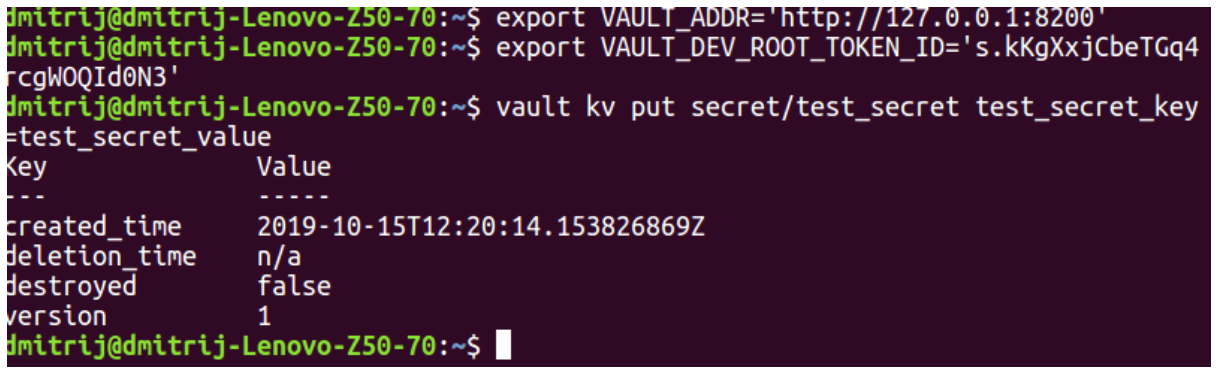
First, let’s create a secret. We need to use the vault kv put command to do this. This command expects to take a path where the secret should be stored internally in the system. The second argument to the command is the key/value pair of the secret. For example, below we create the secret test_secret_key with the test_secret_value, and store it by the secret/test_secret path:
The desired output:
Note, that you need to export VAULT_ADDR and VAULT_DEV_ROOT_TOKEN_ID in the same session from which you want to create a secret. Otherwise, there will be an error.
It is more like a sandbox to send secrets to Vault by direct typing them in the CLI. The vault kv put command can take inputs as files or by reading STDIN. The more reliable way is to use files.
Now let’s view the stored secret. It is as simple as calling the vault kv get command and specifying the path to the secret:
Here is the output:
It is also possible to tell Vault to return only the value, without the key. The vault kv get command is even capable of returning the output in the form of JSON file. This is convenient when you need to use the output for some automated processing later.
Eventually, we may need to delete the existing secret manually. Here is how we can do this:
The output is short:
Vault Web UI Overview
In the previous chapter, we have shown how to perform basic operations (create, get, delete) with secrets using the command line interface. You may remember that Vault also has a GUI. You can do the same manipulations (and even more sophisticated) there.
To access Vault web UI, you should start the server first. After starting the server, you will see the URL to the web UI in the output:
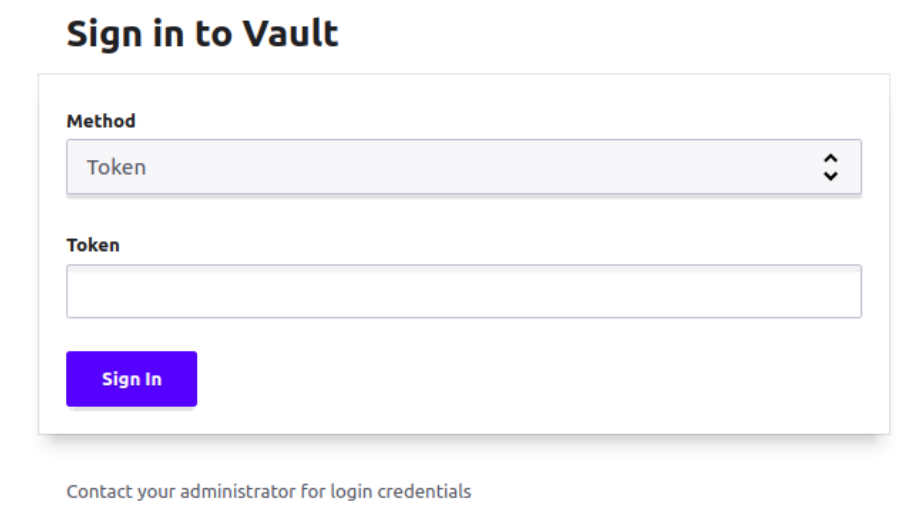
Follow this URL in your web browser. You will be asked to sign in to Vault:
You can use the root token to authenticate to the UI:
You will see the following main page of the Vault Web UI:
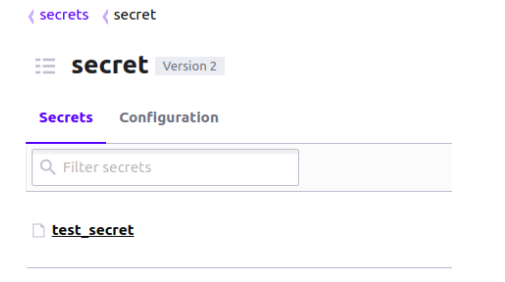
If you go into the secret folder, you will see our secret which we have created in the previous chapter (test_secret):
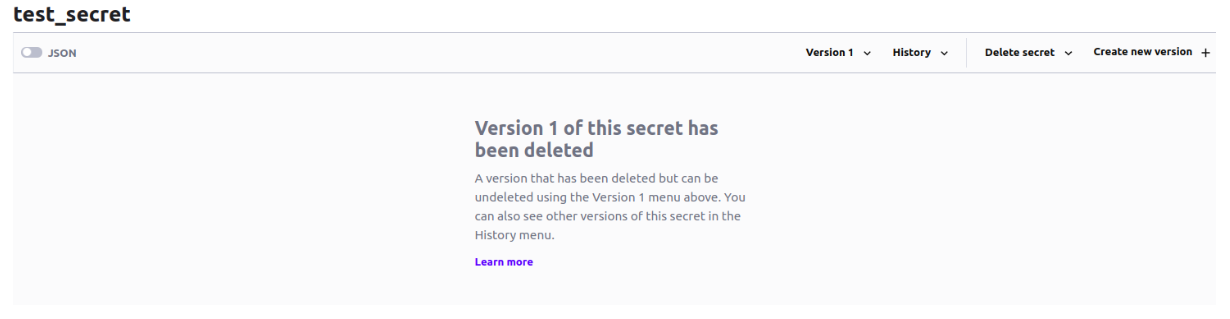
Nevertheless, if you click on the secret, you will see the message saying that it was deleted:
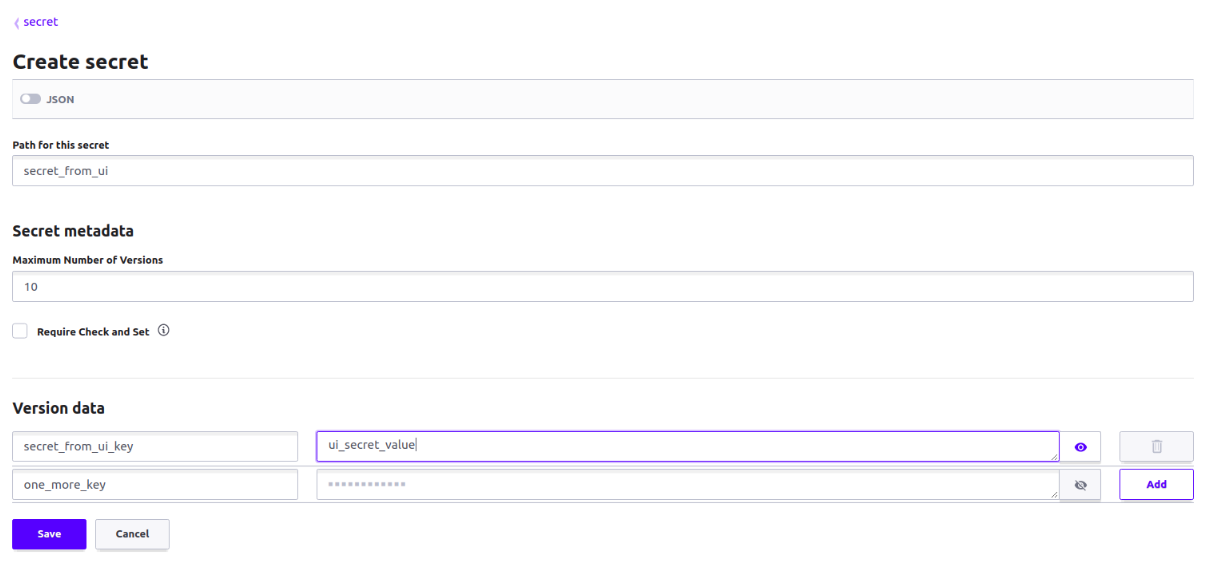
Let’s go back into the secret folder and click on the Create secret button:
This is how to create a secret from the UI. On the next page, you will be asked about the path for the secret (we have entered secret_from_ui), secret metadata (we left this default), and version data. In the version data section, we clicked on the Add button from the right side to add one more key/value pair. After everything here is filled, you can press the Save button. This will create the secret.
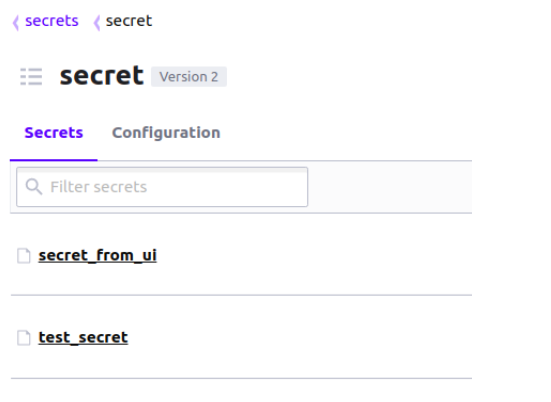
Now we have the secret_from_ui secret in the secret folder as well:
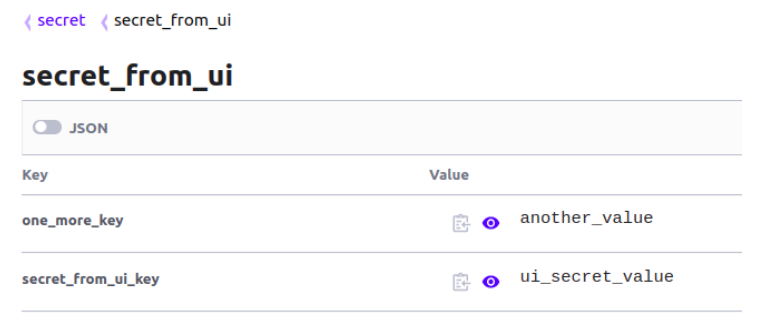
If we click on the name of the secret, we will see the key/value pairs. After pressing the eye icon, the value for the corresponding key will be displayed:
The panel for managing the secret is located in the right part of the window. You can delete the secret, copy it, create a new version, view history, etc.
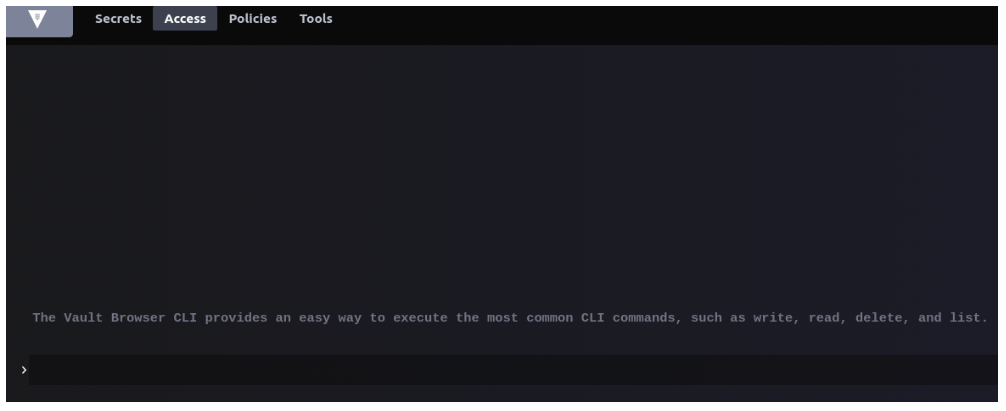
There is the control panel at the top of the page. You can manage via UI not only secrets, but also the access, policies, and tools. Each menu has its sub-menu. For example, here is the Access tab:
On the right side of the window, you can press the middle button:
This will open the CLI directly in your browser. If you need to execute some commands from the CLI, you can do it directly in your browser.
As we can see, Vault’s web UI provides capabilities for performing the same thing as via CLI or API. What interface you should use entirely depends on the task you need to accomplish. For example, if you need to create and store a few secrets only once, it is better to use web UI. But if you need to work with Vault permanently and in an automated manner, it is obvious that you should use other options (probably, HTTP API).
Conclusion
In this tutorial, we had a quick look at Vault. It is a modern system for managing secrets (passwords, credentials, keys, etc.). We have looked at the motivation for using Vault and its core features. Then, we described how to install it and set up a development server. After having the server running, we demonstrated basic Kubernetes operations with secrets in Vault: creation, getting, and deletion of the secret. We have used the command-line interface for this. At the same time, we made an overview of the Vault’s web-based user interface. After reading this material, you should be able to start using basic Vault’s features.
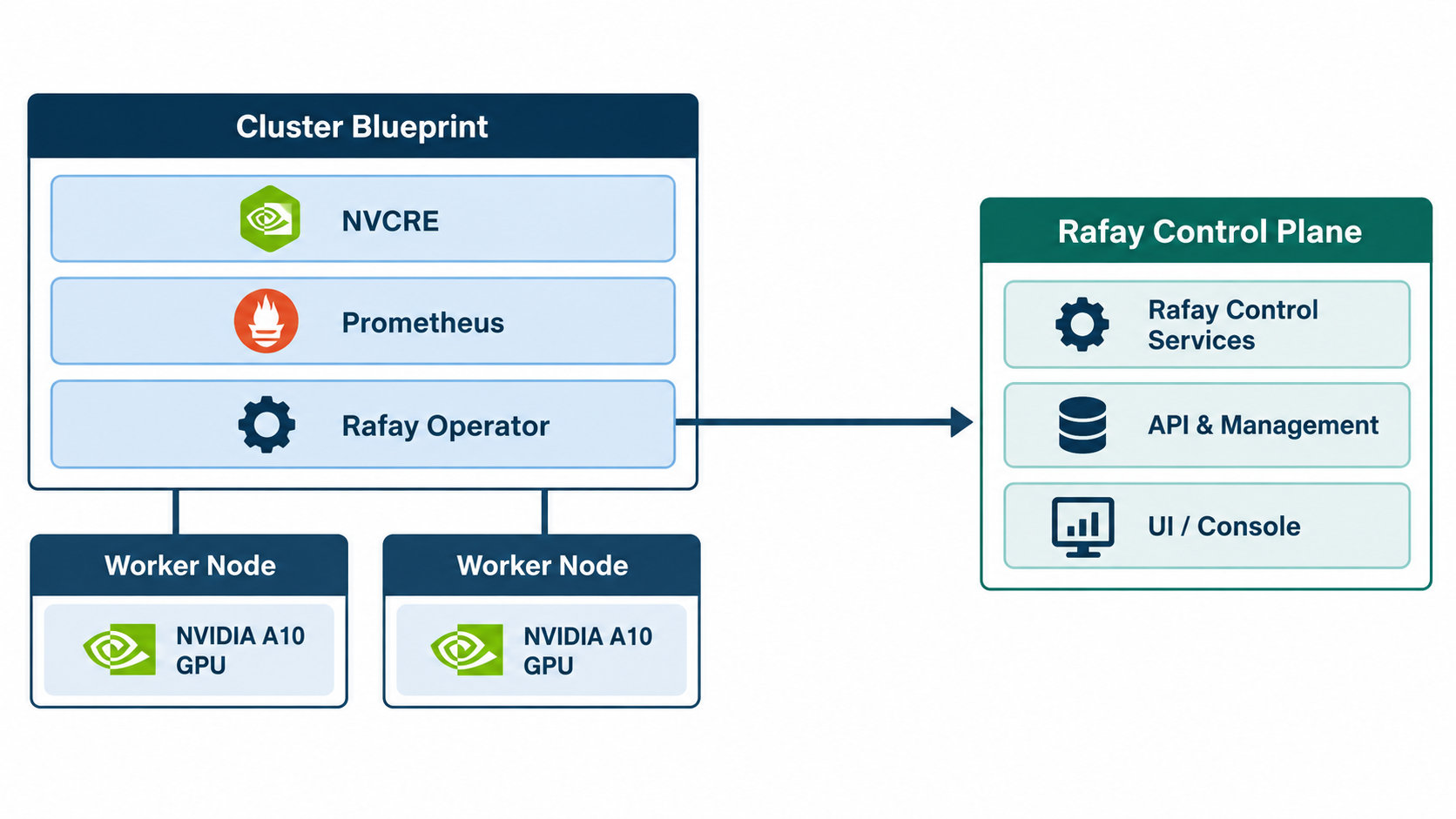
Certifying Tenant GPU Kubernetes Clusters with NVIDIA Cluster Readiness Engine
Learn how NeoClouds can use NVIDIA Cluster Readiness Engine to certify GPU Kubernetes clusters before tenant handoff and validate AI workload readiness.
Rafay Systems has been recognized as a Representative Vendor in the 2022 Gartner® Market Guide for Container Management
Rafay Systems has been recognized as a Representative Vendor in the 2022 Gartner® Market Guide for Container Management Rafay Systems has been recognized as a Representative Vendor in the 2022 Gartner® Market Guide for Container Management. * We believe that being included in this market guide report underscores that Rafay’s global customer base and Infrastructure and Operations (I&O) teams recognize value in the company’s unique approach for operating Kubernetes infrastructure and modern, containerized applications.